
WELS Cloud
  • Welcome
  • WELS Cloud Home
  • My WELS Cloud
  • Other Links
    • Public Forms
    • Yearbook
  • Contact Us
  • Menu Menu

Tech Support

Share TV screen/window- Augsburg

Lowering the white screen
1. The switch is on the north wall
2. Select the switch to lower the screen
Connecting to wireless Airtame 2 device
3.Turn on projector with the white remote ON button
4. Open the Airtame app on your laptop

5. Select Share Window or Share Screen
Connecting your Own Computer/Device to Projector if your computer has an HDMI Connector
6. Use HDMI cable (in the left drawer in the cabinet), plug one end into your laptop and plug the other end into the outlet located just below the switch for the white screen.

7. Turn on projector with white remote ON button.
8. IF, you do not see your laptop screen displayed on the white screen, press the “HDMI2” button on the remote.
Connecting external speaker/microphone
9. Locate speaker and speaker cable in left cabinet drawer.
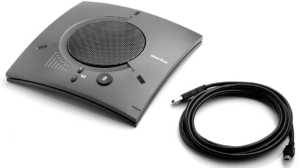
10. Plug cable into speaker.
11. Plug USB end of the cable into laptop.
12. You will have to make sure the software on your laptop uses the Chat 150.
Connecting external webcam
13. Locate webcam in the left cabinet drawer.
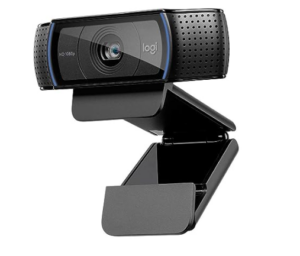
14. Plug webcam USB into laptop.
15. You will have to make sure the software on your laptop uses the HD Pro Webcam C920.
16. There is a gray USB extension cable in the left cabinet drawer if needed.
When done, please turn off the projector, rewind and store cable, speaker, webcam, and retract the screen.

  • CMM Tech Support
  • Share TV Screen/Window
  • Teams/Zoom
  • Share TV Screen/Window – Augsburg/Finance
  • Speakers/ Audio

WELS Help Desk

  • E-mail: [email protected]
  • Phone: 414.259.4357
  • Hours: Monday through Friday, 8 a.m. to 4:30 p.m. Central Time
© 2026 copyright Wisconsin Evangelical Lutheran Synod. All Rights Reserved.      Privacy Policy | Privacy Tools | CMM
  • Link to Facebook
  • Link to LinkedIn
  • Link to Instagram
  • Link to Flickr
  • Link to Vimeo
  • Link to Youtube
  • Link to Rss this site
  • Link to Mail
Scroll to top Scroll to top Scroll to top
Manage Consent

By accepting this message, you consent to our cookies on this device in accordance with our cookie policy found in the WELS Privacy Policy, unless you have disabled them.

Functional Always active
The technical storage or access is strictly necessary for the legitimate purpose of enabling the use of a specific service explicitly requested by the subscriber or user, or for the sole purpose of carrying out the transmission of a communication over an electronic communications network.
Preferences
The technical storage or access is necessary for the legitimate purpose of storing preferences that are not requested by the subscriber or user.
Statistics
The technical storage or access that is used exclusively for statistical purposes. The technical storage or access that is used exclusively for anonymous statistical purposes. Without a subpoena, voluntary compliance on the part of your Internet Service Provider, or additional records from a third party, information stored or retrieved for this purpose alone cannot usually be used to identify you.
Marketing
The technical storage or access is required to create user profiles to send advertising, or to track the user on a website or across several websites for similar marketing purposes.
  • Manage options
  • Manage services
  • Manage {vendor_count} vendors
  • Read more about these purposes
View preferences
  • {title}
  • {title}
  • {title}